


Aider: AI on your terminal
Aider is an AI assistant for the terminal. It can be connected to some of the public available models, or to a self-hosted model (also accessible via OpenWebUI), as in my case.
In particular, I wanted a strictly on-demand AI assistant. That is, I want it disabled most of the time, and only activate it when needed.
In addition, I was able to integrate it into vim, which is the editor I use, without adding plugins.
Installation
I chose to set up the installation in a virtual environment created with
venv, with the following steps:
- Create a folder called
aiderinside~/.configwith the commandmkdir ~/.config/aider, and go to that folder withcd ~/.config/aider. - Create a virtual environment with Python, using the command
python -m venv
   venv_aider
, and activate it withsource venv_aider/bin/activate. - With the environment activated, install aider with
pip install aider-chat. - Generate a configuration file,
~/.config/aider/.aider.conf.yml, which in my case contains only the following; we can adjust it as we like:
openai-api-key: my-api-key
openai-api-base: https://self-hosted-model
map-refresh: files
subtree-only: true
auto-commits: false
- Create two aliases in
~/.bash_aliases(or wherever our aliases live), with the following:
alias activate_aider="cp -i ~/.config/aider/.aider.conf.yml .; source ~/.config/aider/.venv_aider/bin/activate ; echo 'Start with: aiderwf'"
alias aiderwf="aider . --model your-model-alias --watch-files --no-show-model-warnings"
Usage
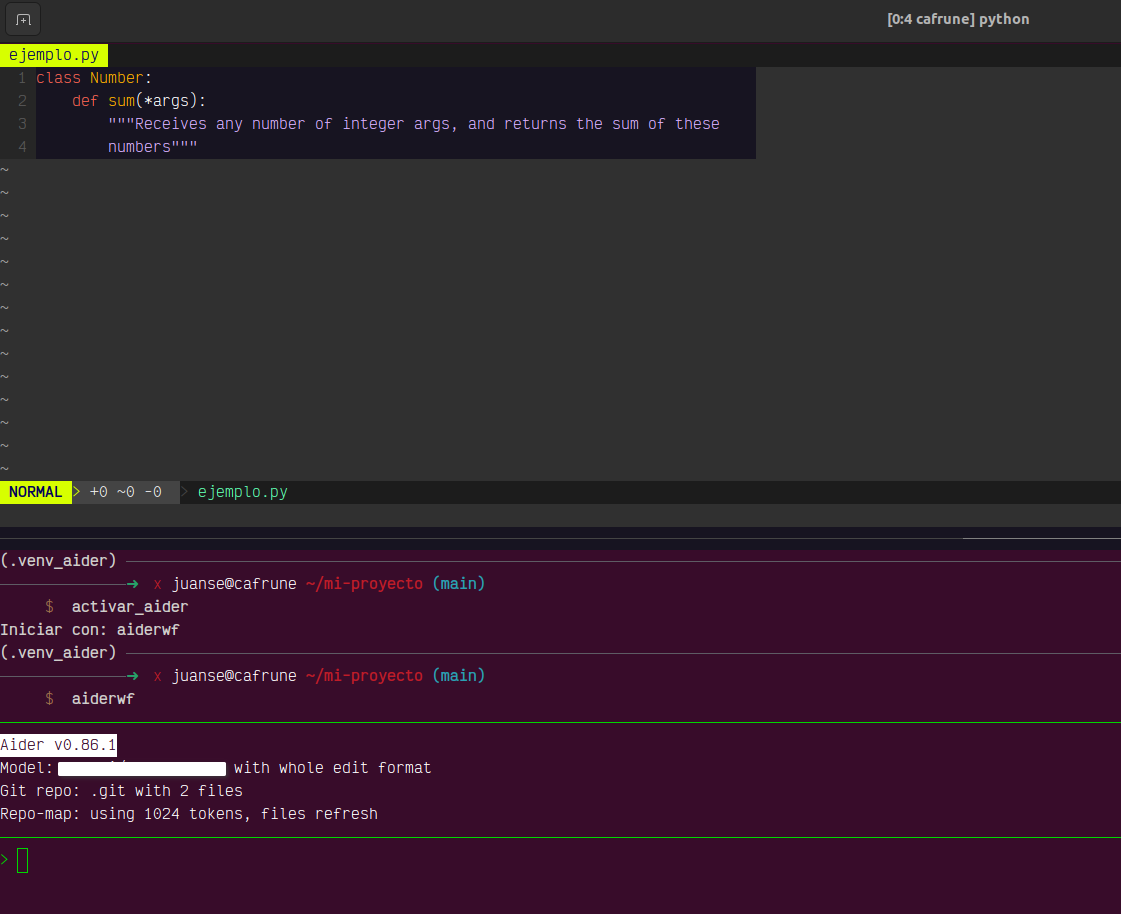
- Being in the folder where the codebase is located, as we edit a file in vim, open another panel in tmux, and activate aider with the aliases defined above.
-
In the tmux panel that has the aider prompt, we can add the file/s we want it to edit. using
/add ruta/al/archivo -
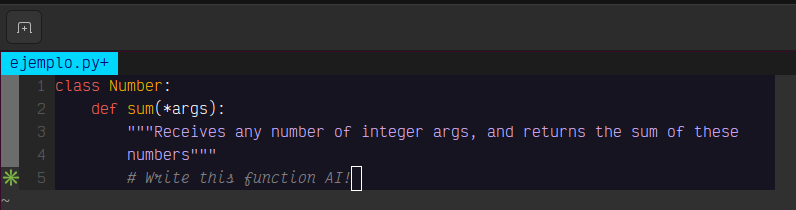
At the bottom, we can write prompts to our model. But we often want to ask about a specific part of the code, and it's hard to indicate where. So we can write comment-prompt, which is any comment that ends with
AI!.
- When we save the file, we see at the bottom the reasoning the model makes to
solve the task, the edit made to the file, and the diff of that edit. By
executing
:ein vim, we see the new version of the file.
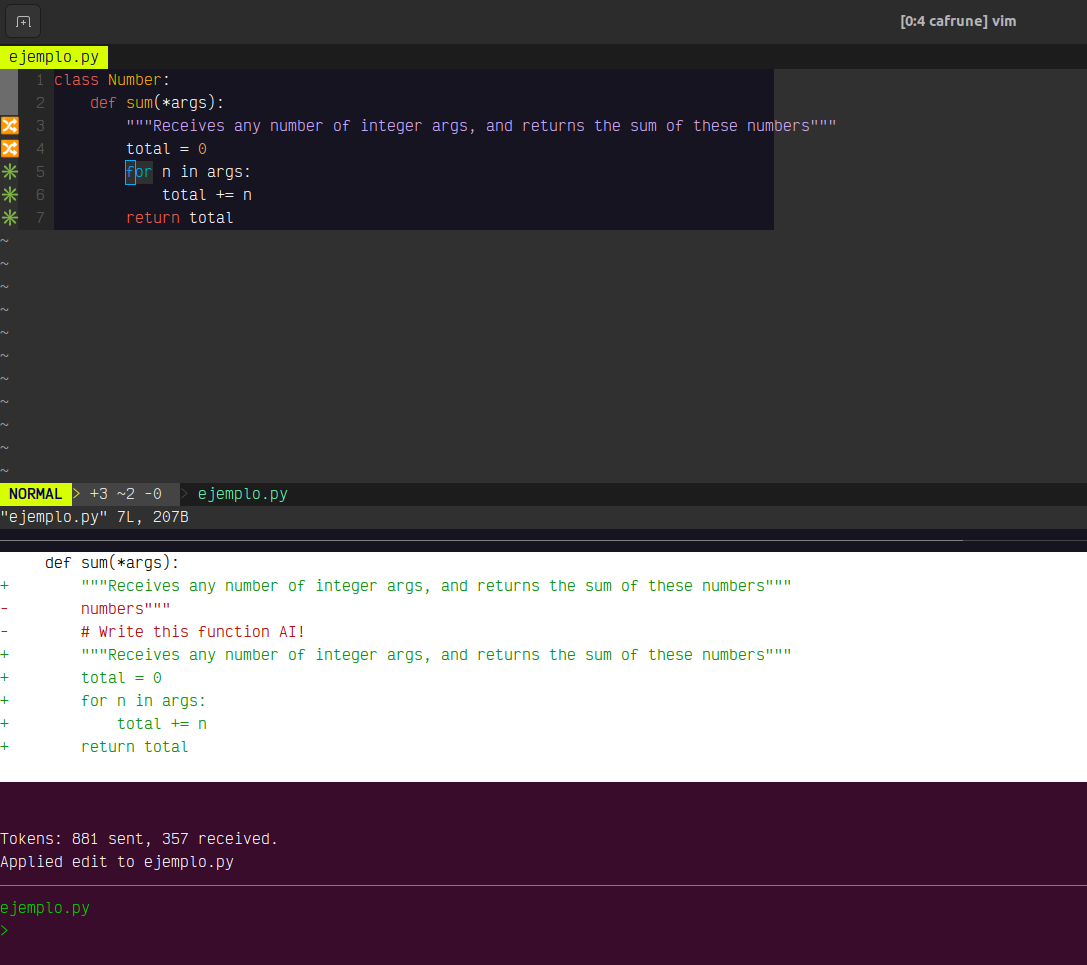
Note: Notice that, even in a simple case, it does not suggest modifying the
function signature to add self as a parameter or the @staticmethod
decorator. I don't know if this is a limitation of the model or if it's
strictly answering what I asked.
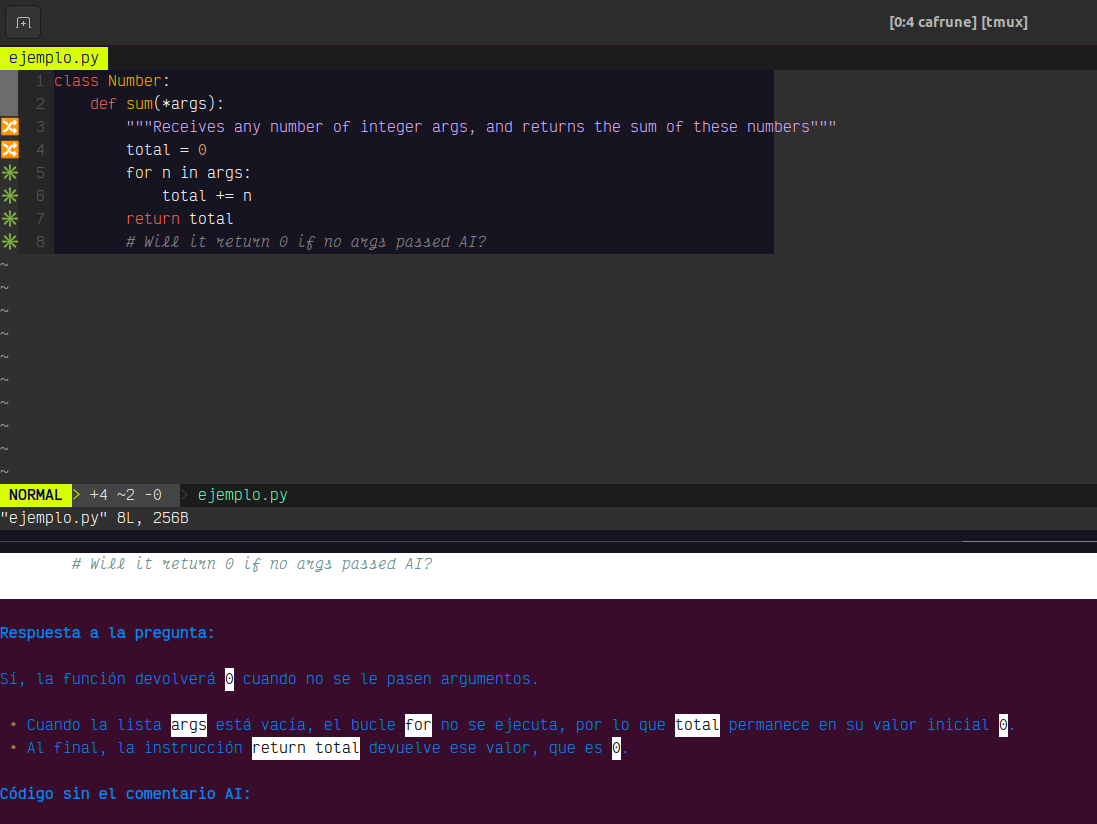
- If we want to ask about a part of the code without editing the file, we
can make a comment that ends with
AI?
Review
The clarification is obvious, but most of what I say is obvious, so no one will notice: the quality of the answer will depend on the quality of the model we are "pointing" at. And like all AI, we should never trust the responses without reviewing them. In my particular use, I saw it allucinating more than once, and those errors are usually hard to spot.
In particular, it was very useful for preparing classes, where I usually create short and relatively simple examples. In my professional work, with much larger and more complex codebases, more than once it started thinking, with waiting times that exceeded my patience. The times it did respond, it was with somewhat doubtful observations.
I guess that's due to the particularities of the LLM, and not the setup I describe here. Until now I hadn't liked the idea of tools like Copilot; I felt it comparable to programming with someone looking over your shoulder and giving unsolicited opinions at every step. So, regarding usability, this configuration was useful because I can activate it when I need it, and make it comment only when I ask. Besides, it has become useful in one of my jobs, and I trust I can fine-tune its operation to get 100% of the benefit.
Tags: english, herramientas, ia, programacion


